To speed up layer operations, you can use the package lisp file LYABM.fas. The package includes the lisp commands LYA, LBY, LYBU, LAC, LACU, LMA, and the shortcuts LL, LU, LF. Many of the operations within the package can also be performed without using the lisp commands.
LYA command; Creates a new layer. Then asks in the order of: Layer name (layer ismi), Line thickness (çizgi kalınlığı), Line color (çizgi rengi). Opens and selects this new layer, you can directly continue drawing on this new layer.
Important note: When using LYA command, if you enter the name of an existing layer as the layer name, it will modify the properties of the existing layer.

To create a new layer without using Lisp, first open the Layer Properties window, click the “New Layer” button, and after finding it in the list, you can set its name, line color, and layer status. You can also use the LAYER command within AutoCAD to open the Layer Properties window.
LYB command: Sets the line thickness of the selected object’s layer to 2.00. This is particularly useful in mechanical or electrical installation projects to make it easier to distinguish lines and branches.
LYBU command: Restores the layer affected by LYB to its original state.
Important Note: Avoid using other layer commands between the LYB and the LYBU commands. If the LYBU command doesn’t work, manually change the layer’s line thickness.
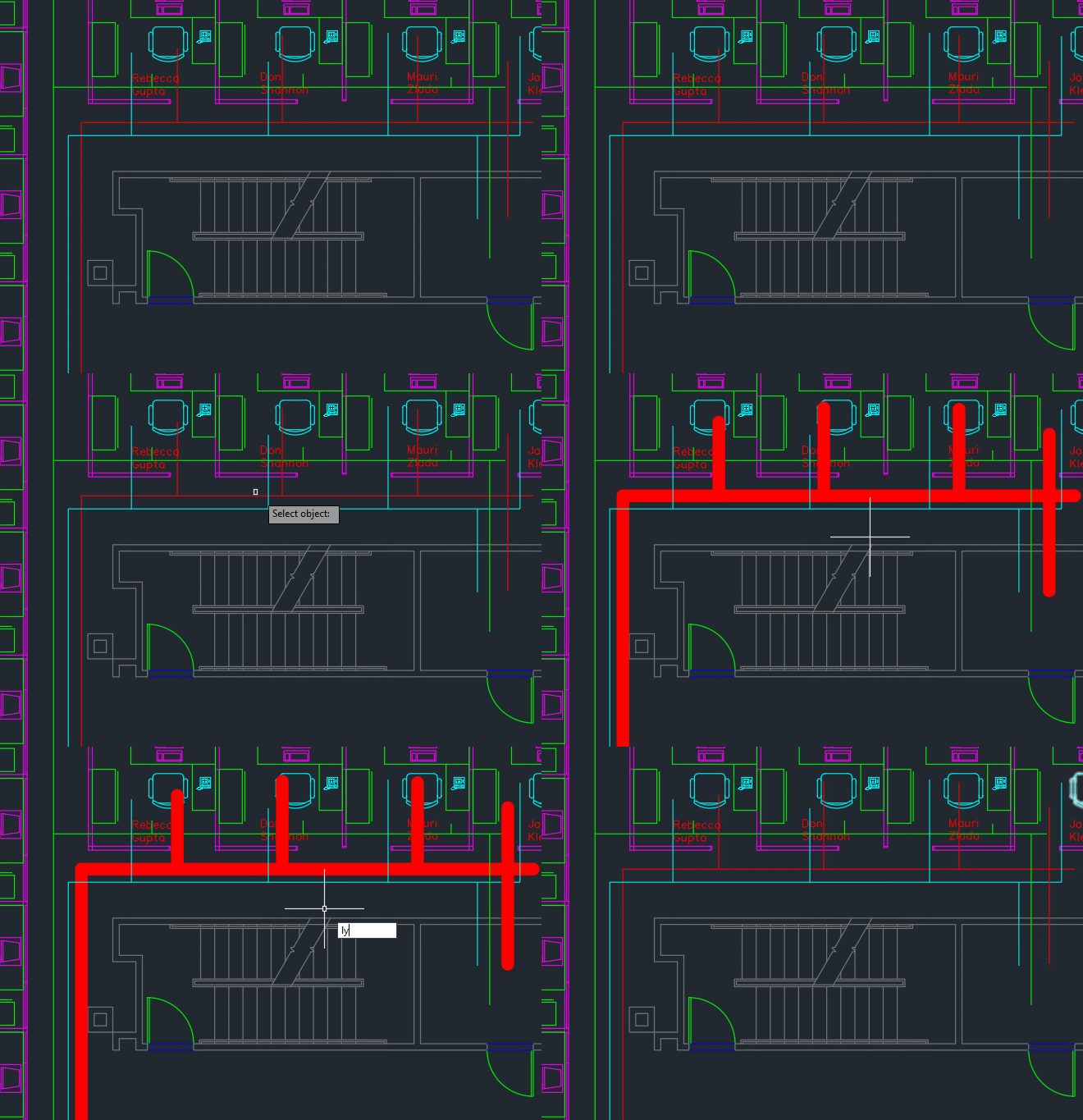
Without the LYB Lisp, you can still change the line weight of any layer by opening the Layer Properties window.
LAC command: Opens (light lamp icon – On) and dissolves (sun icon – Thaw) all the layers.
LACU command: First processes the LAC command; then, it reviews all objects and unlocks the layers.
Both commands provide a warning upon completion. The LACU command may take some time because it scans for all the objects.
Without using the Lisp commands, you can use the Layer Properties window or the AutoCAD within commands LAYTHW (unfreeze all layers, sun icon), LAYON (opens all layers, lit lamp icon), and LAYULK (unlocks the layer of the selected object. You need to click on each layer individually).
LMA command: Moves subsequent selected objects to the layer of the first selected object. This is especially useful when collecting and counting blocks in scattered layers.

First, select any object in your main layer where you’ll organize everything into it. Then select the target objects. it will move every object you click on (even if its layer is locked) to your main layer until you press the spacebar on the keyboard.
Download the LYABM.fas file
LF : Activates the LAYFRZ command within AutoCAD. It freezes the layer (snowflake symbol) of the selected object until you select an empty area.
LL : Activates the LAYLCK command within AutoCAD. It locks the layer of the selected object.
LU : Activates and repeats LAYULK command within AutoCAD. It will unlock the layer of the selected object until you select an empty area.
You can also use the LAYOFF command within AutoCAD to turn off the layer (simple lamp icon) of the selected object.
I suggest that you also learn how to use the LAYISO and LAYUNISO commands within AutoCAD to work more efficiently and easily. the LAYISO command will isolate the layer of the selected object according to your settings (lock and fade, turn off, or freeze other layers). LAYUNISO command is basically turns back to the original state before the LAYISO
PS: AutoCAD LT does not support the Lisp commands. But you can use some of the commands within AutoCAD.
Comments