There are several ways to count things in AutoCAD, and I will give four of them as Method A, B, and C.
On a well-planned and organized project, without using Lisp codes; (Method A)
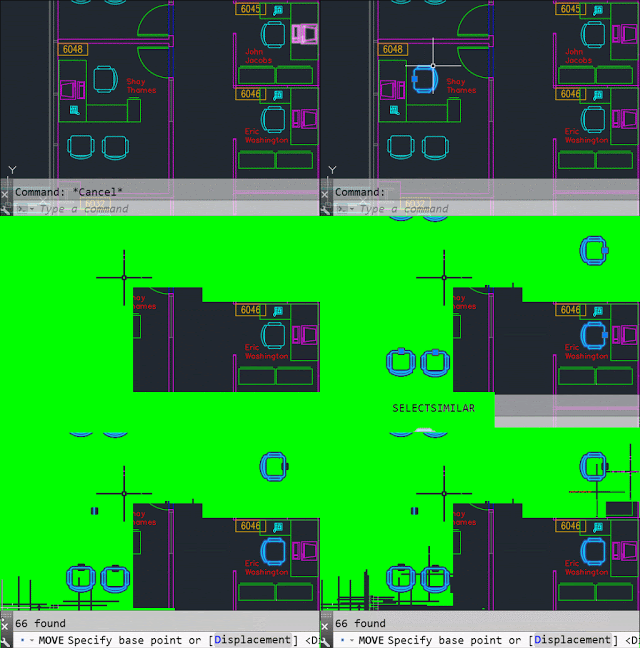
Assuming that on a well-organized project, the things will already be on a “block” and they will be on the same “layer”;- Select any of the blocks which you want to count from the screen.
- Use the “SELECTSIMILAR” command to select all the same blocks on the same layer.
- Write “MOVE” or “COPY” command and enter. You will see the number of the blocks over the command line as “.. found”.
If the items to count are on a block but at different layers, you can use the LMA lisp command, which is given in the AutoCAD Layer Lisp commands post. (Method B)
You should install the Lisp file (LYABM.fas) and enter the “LMA” command to use it.
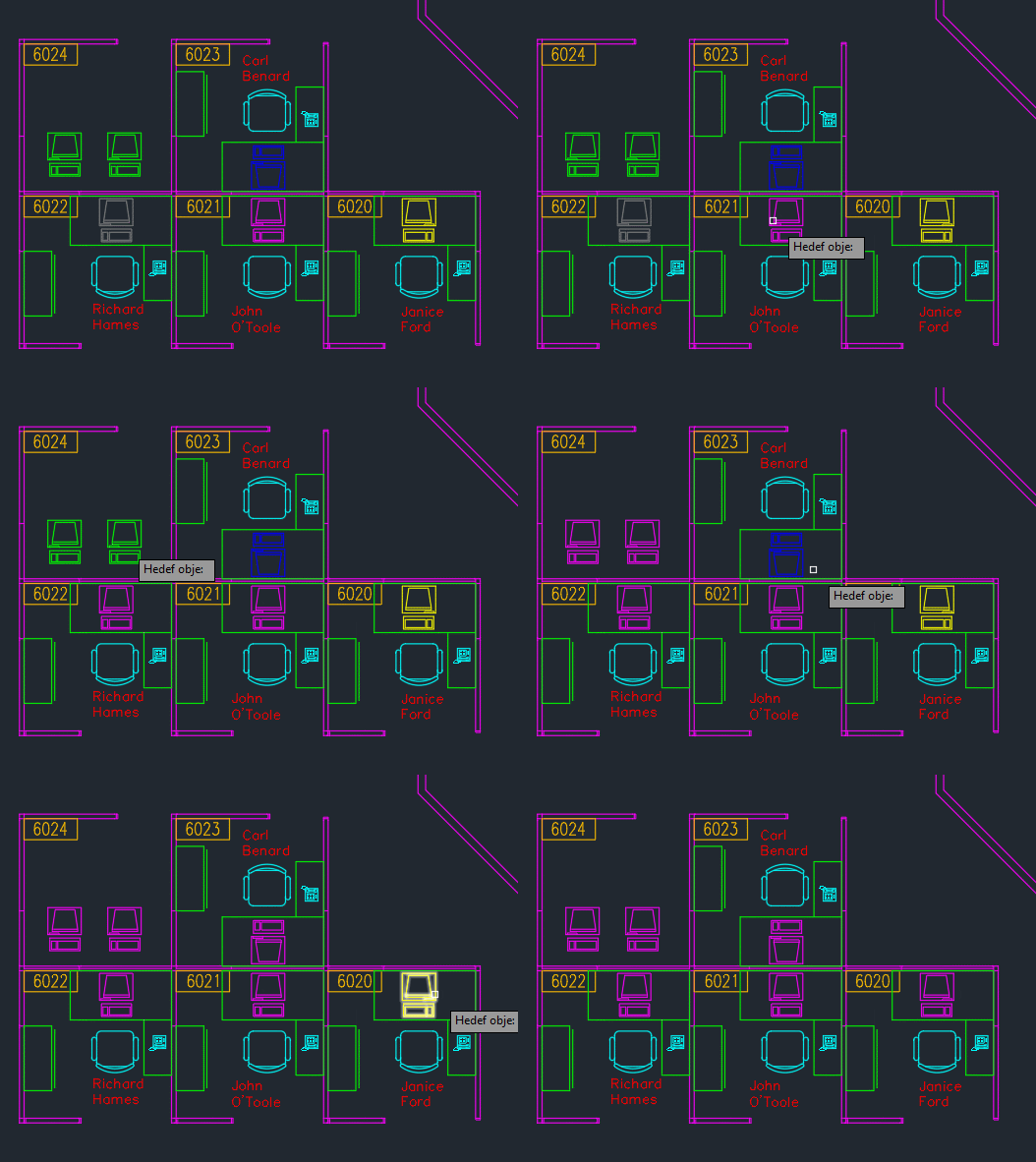
- Enter “LMA” to the command prompt.
- Select any object in the target layer.
- Choose any other objects that you want to count. The LMA command will move all of them in to the target layer.
- Now use Method A to count all of them.
Optionally, you can open a new layer and draw anything before using the LMA. Then use it as the first source object.
Finally if the items you will count cannot put in a “block” or even not a drawing object (like pipe elbow, doors drawn as polyline, tables drawn as simple lines, etc.), then only option is counting them one by one. (Method C)
In this case you can use the YS lisp command of Sayim.fas to give number every point in the AutoCAD numbering objects in the project using Lisp post.
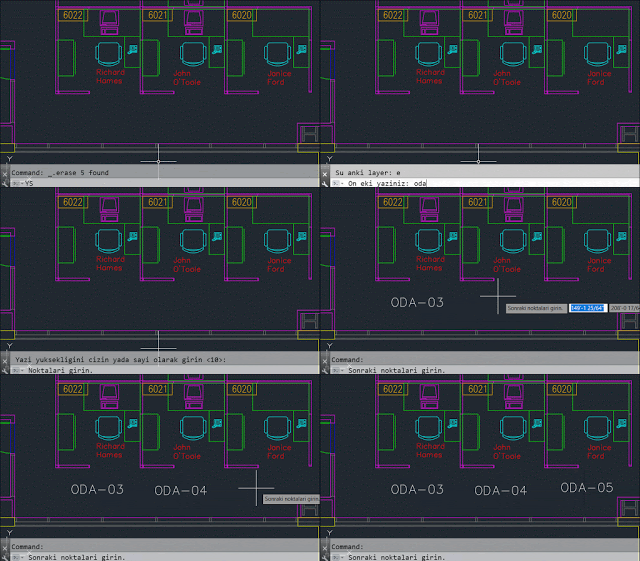
Sayım.fas includes 4 similar commands. However, the instructions are in the Turkish language. Please, reach me by e-mail to provide it in another language or pack other Lisps with it.
PS (1): If you cancel YS command with pressing ESC, the last number will stay in the memory. When you enter YS again it will continue from the last number. To give a starting number again, you should just press Enter when you see “nokta seçin.” instruction, instead of clicking on the project.
PS (2): AutoCAD LT does not support Lisp commands.
Comments